
Maintenance History
In this section, you can view the full history of all maintenance interventions carried out. Each row in the list corresponds to a maintenance record.
Maintenances are identified by their execution date. Multiple maintenance interventions can occur on the same day.
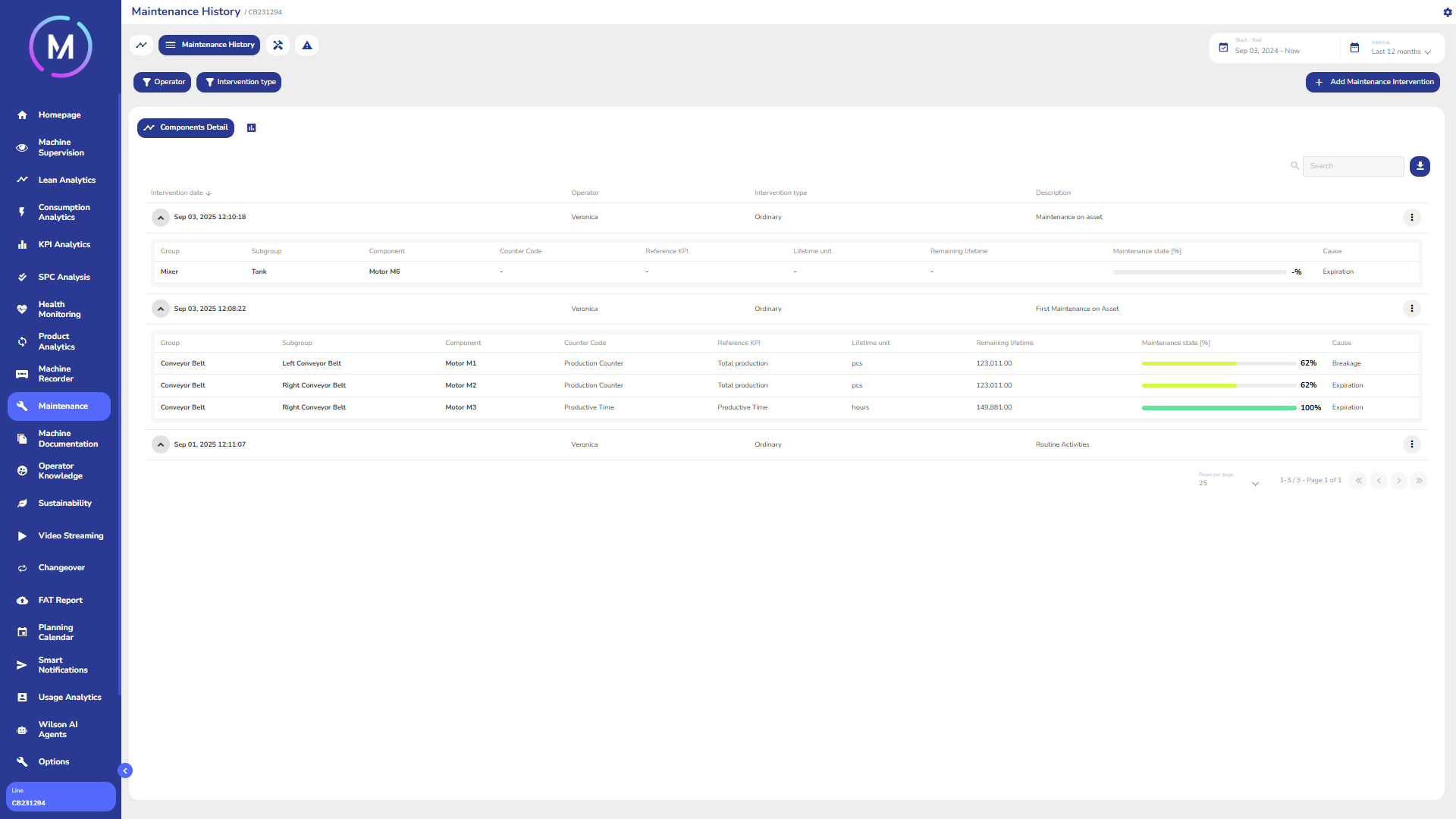
Within a maintenance record, both activities and component replacements may take place. For each component, it is possible to indicate which replacement cause actually triggered the maintenance.
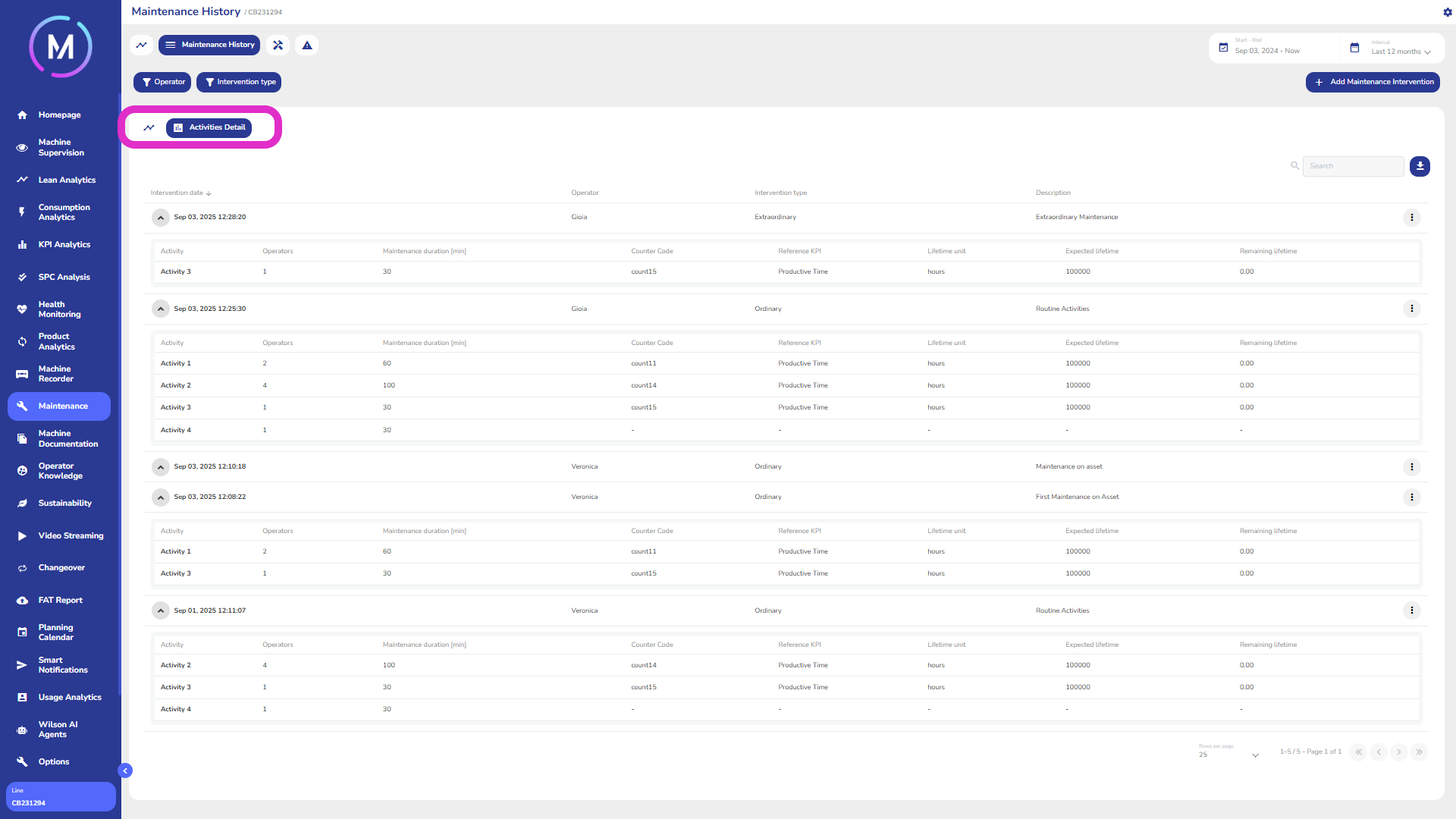
The display mode of maintenances on the page is twofold: you can either view maintenances along with the components involved (Image B), or view maintenances and the activities performed within them (Image C). The selector allowing you to switch between these two modes is highlighted in Image B and Image C.

Adding a Maintenance
The Add Maintenance Intervention button allows you to insert a new record into the table. The window shown in Image D lets you fill in the required data.

The window for creating a new maintenance record consists of three sections, each of which can be filled in.
First section is in Image D. Here you can add the following information:
Intervention Date: the date on which the intervention took place, including minutes. Note that it is not possible to insert a maintenance record on a date that already has another record;
Type of Intervention: an intervention can be ordinary, extraordinary, or proposed;
Operator: the name of the operator who carried out the intervention. Multiple names are allowed;
Notes: notes can be entered for each maintenance in all project languages.
The second section allows you to specify which activities were performed during the maintenance. Note that adding activities is not mandatory, provided that component replacements are included. Image E shows the window where all activities are listed and selectable. An activity is always applied to all components it is linked to.

Third section is shown in Image F. This section allows you to indicate all components involved in the maintenance. For each component, you can also choose which replacement cause triggered the maintenance, among those available for that component (Image G).


Once a maintenance has been entered, several operations can be performed on it. For example, it is possible to modify it, delete it, or attach documents (Image H).

Adding Attachments
As shown in Image H, it is possible to attach files to each maintenance record. The Add Attachments button opens the view shown in Image I.

Here you can manage all attachments related to the specific maintenance. In addition to adding or deleting files, you can also download a zip archive containing all of them.