
User Management
In this section, you can view all users who have access to the current application. For each user, some information is displayed, such as first name, last name, and associated email addresses. In addition, their assigned profiles and status are shown, indicating whether the user has already accepted the invitation to access the application or is still awaiting confirmation.

The Add User button, available on the page, allows you to invite a new user to access the application. During this operation, it is necessary to enter some mandatory information such as:
first name, last name, and email address (Info tab);
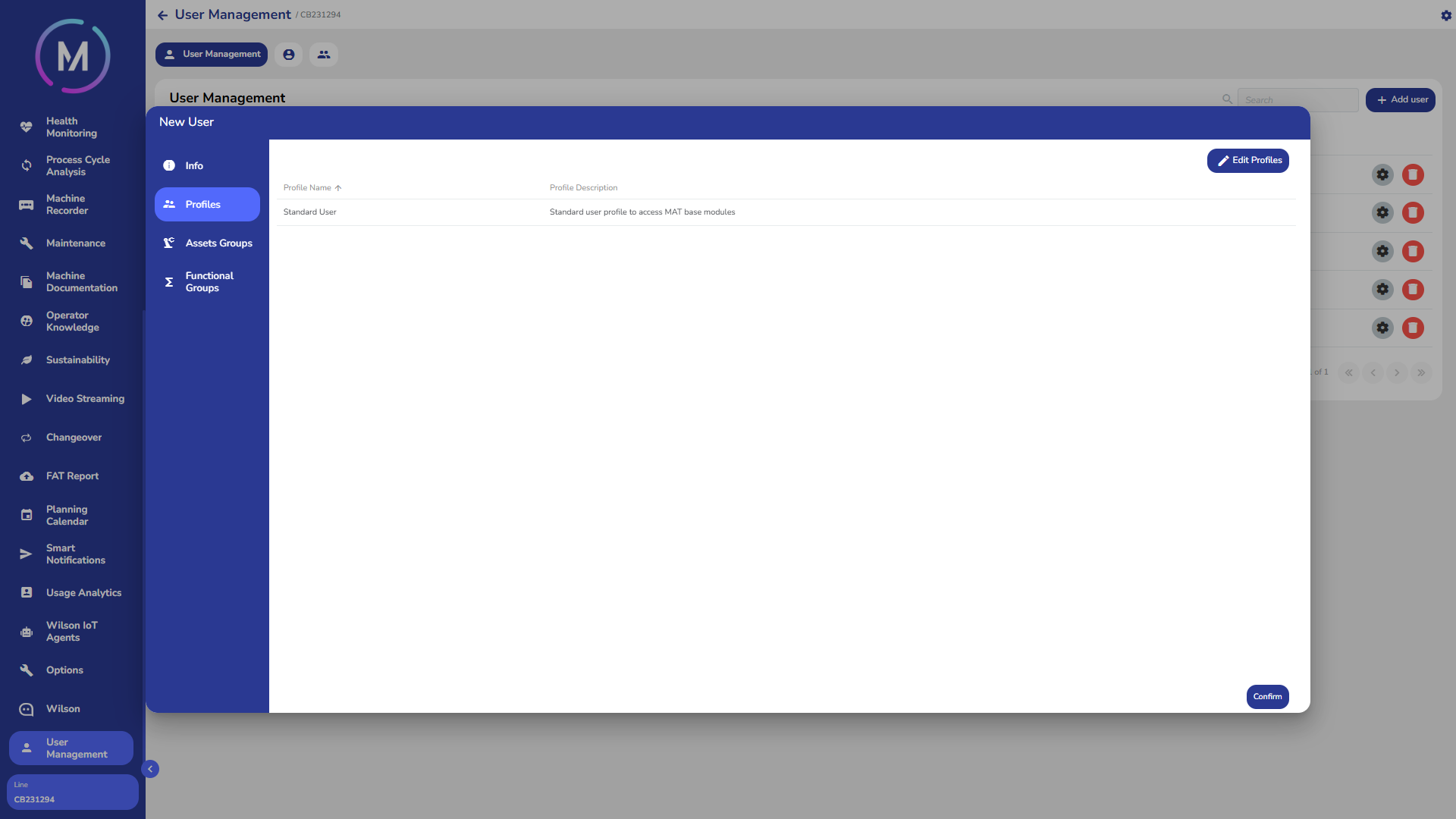
associate the profiles (Profiles tab);
assign permissions for viewing assets (Asset Groups tab);
assign permissions for access to the different sections of the application (Functional Groups tab).
Once the configuration is confirmed, the user will receive the invitation to access the app. They will also be displayed in the list of available users, and their status will be pending until the invitation is accepted.
On the page, for each user, two actions are available through the buttons at the end of the corresponding row: deleting the user and editing their information.
When choosing to edit a user, a window will open containing all their current information, such as first name, last name, and email address, which can be updated. The groups they belong to, the permissions associated with assets, and the profiles can also be modified.
Info Tab
In this tab, it is necessary to enter the user's information, such as first name, last name, email address, and a display name to be used in the app when referring to the user.

Profiles Tab
This tab allows you to select profiles to associate with the user being invited. Initially, the tab will be empty.

By using the Edit Profiles button, you can add profiles to the user. After confirming, the selected profiles will be displayed in the window.

Asset Groups Tab
This tab allows you to add asset groups to the user. Initially, the tab will be empty.

By using the Edit Groups button, you can add the desired asset groups to the user by choosing from those that already exist. Once the operation is confirmed, the selected groups will be displayed in the window.


Functional Groups Tab
This tab allows you to add functional groups to the user. Initially, the tab will be empty.

By using the Edit Groups button, you can add the desired functional groups to the user by choosing from those that already exist. Once the operation is confirmed, the selected groups will be displayed in the window.

