Application Registration
When invoking MAT APIs, there is no login flow required; however, credential exchange remains necessary. In such situations, an M2M (machine-to-machine) authentication flow is used to allow a generic client to invoke the MAT service and verify its identity.
To invoke any endpoint described in this guide, it is necessary to provide an application registration (bsw), which must be added to the Auth Manager service configurations by the responsible administrator. This registration will enable M2M authentication. The guide on how to create an application registration can be consulted at the following link.
The correct roles (App Roles) must be associated with this registration. Typically, MAT users are assigned groups to establish their permissions and access. The approach with application registrations is identical, but since it is not possible to assign groups to registrations unless using Microsoft Entra Id Premium services, App Roles are used instead. These are properties that can be assigned to various registrations and have arbitrary naming patterns. The goal is to manage the M2M token transparently, meaning it is handled just like a traditional user token, with the Auth Manager responsible for correctly interpreting it and managing App Roles similarly to groups. Therefore, once an application token is obtained, it can be used in the same manner as a user token.
Assigning Roles to the Application Registration
The roles that need to be associated with the application registration are as follows:
mat-apis : this role is required to invoke the APIs;
oapp-customer-{customerId} : this role is necessary to work with the machines of interest. The
{customerId}parameter differentiates which machines can be viewed by the registration. For more information on this permission, you can refer to the dedicated guide available at the following link.
Procedure
Below is the procedure to follow to assign roles to an application registration using the Microsoft Entra Id service:
access the Microsoft Entra Id Service;

go to the Application Registrations section via the side menu;

select the registration you are interested in from the list of registrations;

Once in the section dedicated to the selected registration, select the App Roles option in the side menu to view all associated roles;
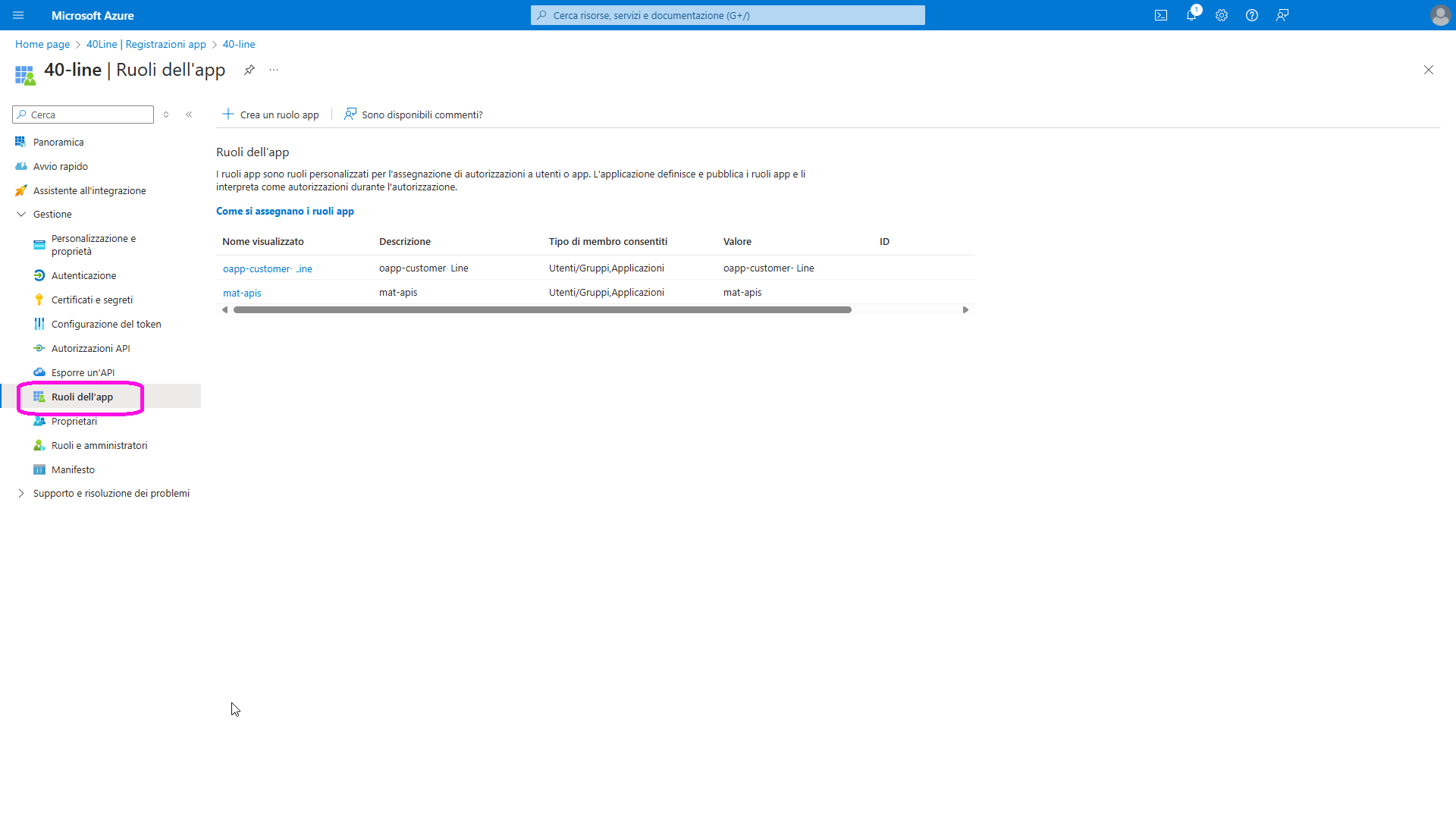
to add a role to the registration, you can use the "Create app role" button. A window will open on the side of the screen where you can enter the information for the new role you want to assign;

after assigning all the roles to the registration, it may be necessary to wait a few minutes for the changes to propagate across all services.