
Activities Excel
Below is an example of an empty Excel file of the activities.
The Excel file dedicated to activities is made up of four tabs, each one dedicated to a specific type of information that must be uploaded into the system by the user. Below is a description of how to fill in the various tabs.
Tab ACTIVITIES
This tab allows specifying all the details of an activity and its links to subgroups and components.
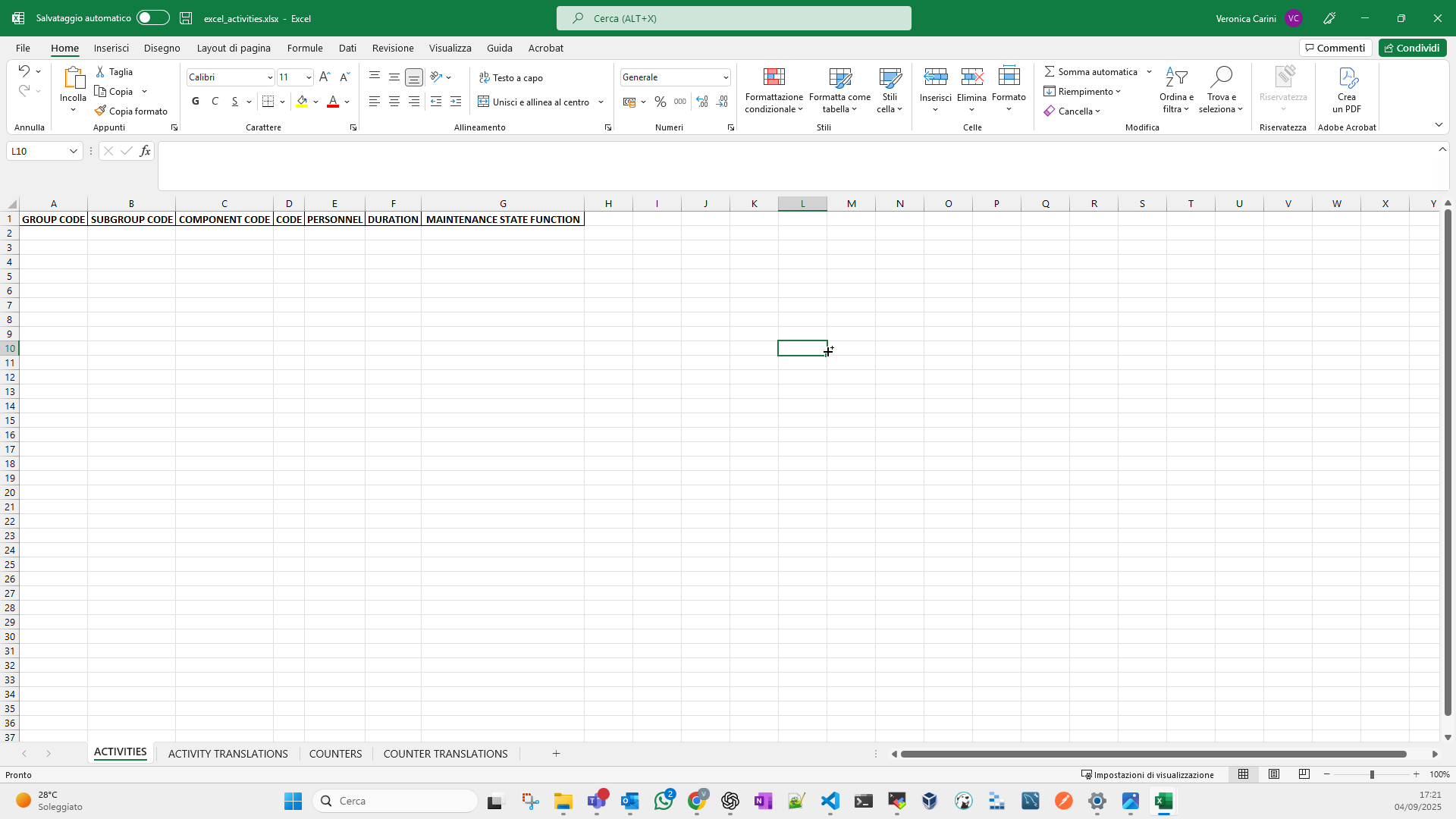
The GROUP CODE and SUBGROUP CODE columns, if filled in, allow linking the activity to the subgroup. They must contain the unique codes of the group and subgroup. Note that the subgroup must belong to the specified group for the association to be accepted.
The COMPONENT CODE column allows linking a component to an activity using the component’s unique code.
The first three columns are mutually exclusive. If the GROUP CODE and SUBGROUP CODE columns are filled in, then the COMPONENT CODE column cannot be filled in, and vice versa. The Excel file is set up to notify the user when these columns are being filled in incorrectly.
If multiple subgroups or components need to be associated with the same activity, a row must be filled in for each object with its data, while the remaining columns should be completed in the same way for each row, i.e., repeating the activity information.
The CODE column allows specifying a unique code that identifies the activity.
The PERSONNEL column allows specifying an integer that represents the number of people required to carry out the activity.
The DURATION column allows specifying a numeric value representing the minutes needed to perform the activity.
The MAINTENANCE STATE FUNCTION column allows specifying which function to use to select the counter that will be used to indicate the “useful life” of an activity, i.e., when it must be repeated. In fact, in the COUNTERS tab, multiple counters can be defined for the same activity. For the system to dynamically choose one of these to indicate useful life, it is necessary to define a function as the selection criterion.
The STARTING DATE column allows the system to determine the initial moment from which to begin counting in order to propose a date when the activity will need to be performed.
As shown in Images B and C, when the MAINTENANCE STATE FUNCTION column is selected, a custom message informs the user that only certain values are allowed in this column. A drop-down menu allows selecting one of the permitted values.


Tab ACTIVITY TRANSLATIONS
This tab allows specifying all translations related to the activities listed in the ACTIVITIES tab. For each activity, a name and a description must be provided. Note that each column is duplicated for all project languages, so its value can be entered in each language.

The CODE column must contain the unique code of the activity for which translations are being defined. Note that the values in this column must match the values in the CODE column in the ACTIVITIES tab.
Image D shows an example of the ACTIVITY TRANSLATIONS tab. In this case, the only project languages are Italian and English, so the NAME and DESCRIPTION columns are provided in both Italian and English (NAME IT, NAME EN, DESCRIPTION IT, DESCRIPTION EN).
Tab COUNTERS
Activities can be associated with one or more counters. To define this association, the COUNTERS tab must be completed. Counters are not mandatory, since an activity may have none.

A counter must always be associated with an activity. This association is made through the ACTIVITY CODE column. Here, the unique code of the activity for which the counter is being created must be entered. The values in this column must match those in the CODE column of the ACTIVITIES tab.
The CODE column allows specifying a unique code for the counter. If the code provided is not unique, then the counter with that code will be updated. Note that it is not possible to change the activity associated with an existing counter. To do so, the counter must first be deleted from the current activity and then recreated for the new activity.
The KPI column allows specifying the value or formula to be used for calculating the counter’s value. As shown in Images F and G, when the column is selected, a tooltip indicates how to populate the cells. The values that can be entered in this column are provided through a drop-down menu. They depend on how the asset’s machine-profile.json file has been configured. Additionally, the "absolute time" value is always available, allowing the creation of a counter that tracks time.

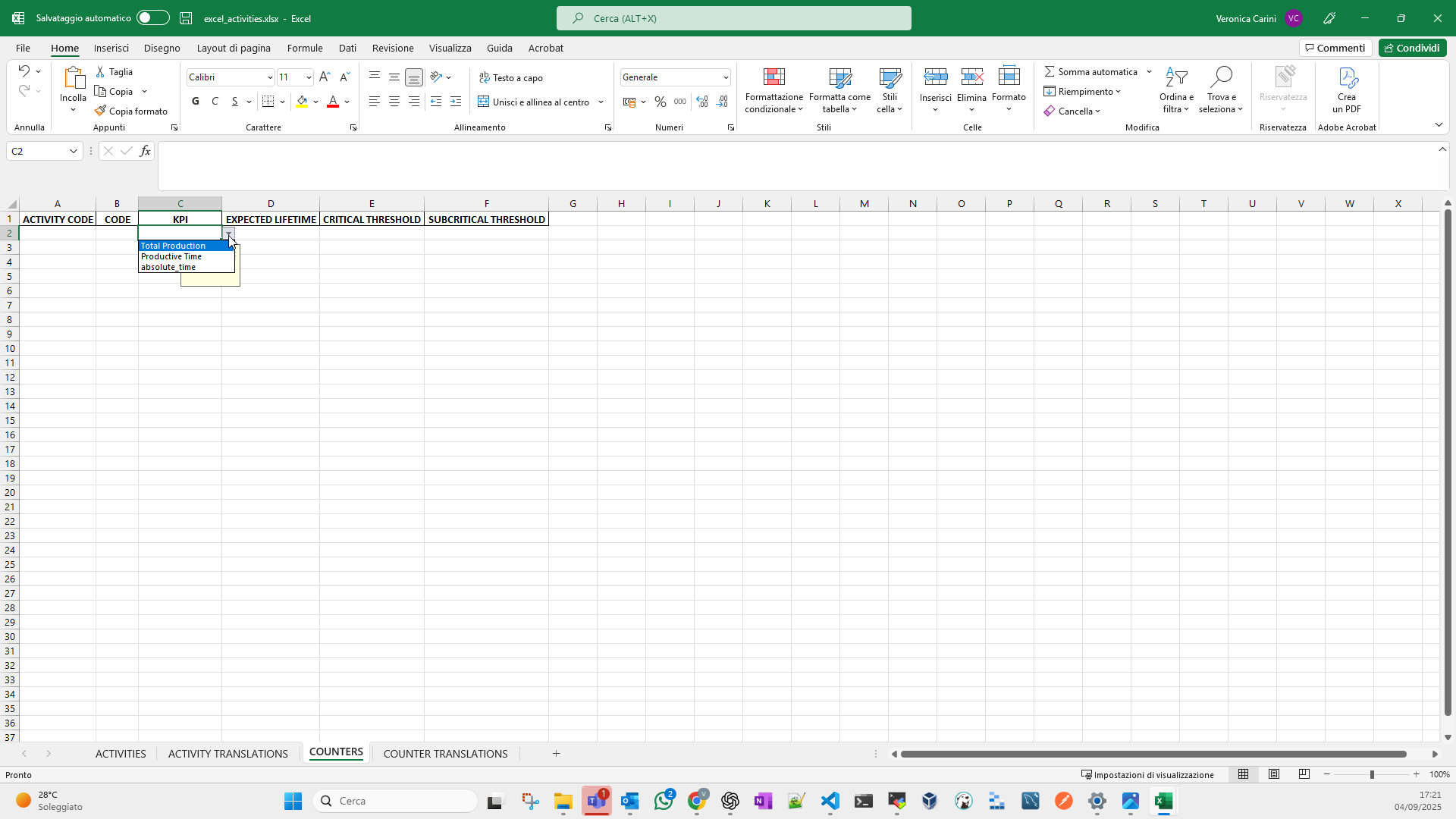
The expected lifetime of the activity must be entered in the EXPECTED LIFETIME column, while the critical and subcritical thresholds must be entered in the CRITICAL THRESHOLD and SUBCRITICAL THRESHOLD columns, respectively. Note that both CRITICAL THRESHOLD and SUBCRITICAL THRESHOLD are optional columns.
Il valore specificato nella colonna EXPECTED LIFETIME deve essere maggiore di quelli specificati in CRITICAL E The value in the EXPECTED LIFETIME column must be greater than the values specified in the CRITICAL THRESHOLD and SUBCRITICAL THRESHOLD columns.
The value in the SUBCRITICAL THRESHOLD column must be greater than the value specified in the CRITICAL THRESHOLD column.
Tab COUNTER TRANSLATIONS
This tab is used to specify translations of the counters defined in the COUNTERS tab. For each counter, a name must be provided in all project languages. The NAME column is duplicated for all project languages so that its value can be specified in each language.
The CODE column must contain the unique code of the counter for which translations are being defined. Note that the values in this column must match the values in the CODE column in the COUNTERS tab.
Image H shows an example of the COUNTER TRANSLATIONS tab. In this case, the only project languages are Italian and English, so the NAME column is provided only in Italian and English (NAME IT, NAME EN).
