
Model Training
This page is entirely dedicated to the management of the artificial intelligence model that is then used for Object Recognition.
The focus is primarily on managing the tags and the image set to be used for training. Indeed, these are the fundamental components for the model's training to yield good results.
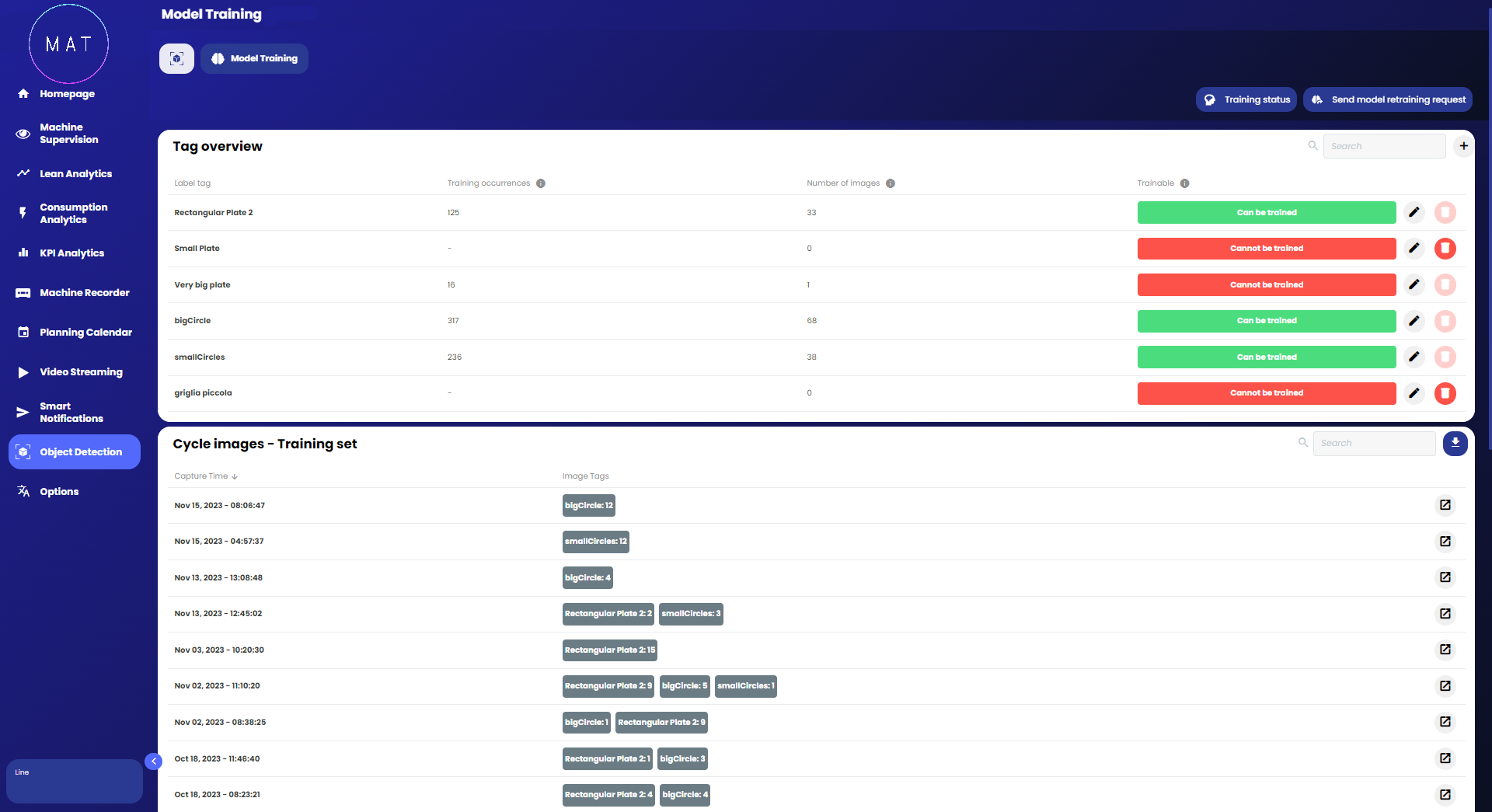
The top part of the page displays all the tags, or the labels that need to be associated with the various objects within the images. The model will only be able to recognize the elements represented by those tags. For each one, it is shown how many times it has appeared in the images, how many images contain it, and a parameter indicating whether that tag can be trained, i.e., if there is a sufficiently large set of examples for the model to learn from them how to recognize that tag. If the parameter cannot be trained, then it will be enough to add images to the dataset containing that tag until the number of examples is sufficient for training.
In the lower part of the page, the set of images used for training is shown. For each one, the acquisition date and all the tags contained in it are specified. By opening the details, it is possible to view the position of the tags and make changes to such annotations. At this stage, it is very important to indicate the tags precisely and ensure that they refer to the correct portion of space.
The training set will include all those images for which the tags have been modified on the Model Prediction page.

Once a good training set has been created and all the tags that are to be used have been obtained as trainable, it is possible to start the new training of the model by selecting the Send model retraining request button.
The training procedure can take a few minutes, to evaluate its status it is possible to click on the Training status button. A new window will open indicating the training status of the selected iteration. Once the process is finished, the displayed status will indicate the completion of the operation. An additional step will now be necessary. Indeed, in addition to training the model, it is necessary to set a degree of accuracy with which it must annotate the images. To do this, the scroll bar (slider) provided by the graphical interface can be used.

Once the desired precision is set, it is possible to test the model obtained on a test image. To do this, the Test Iteration button can be used.

Furthermore, comparisons can be made between the last iteration of the model and the previous ones, by selecting the iteration that one wishes to use and repeating the test on the image. This allows comparing the results obtained with the new model with those obtained with the previous ones.

If the processing result is satisfactory, one can proceed to publish the new model using the Publish Iteration button. Once the publication is made, the new model will be used for the analysis of all new incoming images.